Start here
AI WhatsApp Automation Tool for Business Replies, Leads, and Support workspace
Start with the user need first: add the problem, source material, or draft you already have, generate a useful first result, then decide whether to save, export, improve, or request human help.
Free first-use preview
No card needed to test the workspace
PayPal Checkout and cards later
Operations board
Organize the task, the inputs, and the next action clearly
This interface is designed for repeated operational work so the output feels more like a working desk and less like a blank utility page.
OperationsBusinesses firstSupport AutomationsautomationsFree first-use preview
Task or workflow goal
Working notes, extracted text, or uploads
Rules, approvals, or delivery guidance
Generate, review, export, or hand the work into a human delivery lane.
Start with the jobBest first step
- Choose the support automations task first.
- Upload CSV or the closest source material you already have.
- Describe the desired result in plain language before generating the first draft.
Accepted source materialFormats
Working notes, extracted text, or uploads
Add the strongest material you already have so the first result is more useful and less generic.
CSVDOCX SOPProcess map PDFTicket export
Good example: CSVGood example: DOCX SOPGood example: Process map PDF
Operations board controlsai whatsapp automation tool
Advanced settings
Save and export settings
Output
Operational preview
Generate the first draft and this panel will shift from a placeholder to a usable operations result.
The interface will keep the goal visible so the first generation solves the right problem.
Source material stays anchored to the run, which reduces vague or context-free output.
Exports, review, and escalation stay visible so the tool feels like part of a working system.
Payment route
AI WhatsApp Automation Tool for Business Replies, Leads, and Support can continue through PayPal or eligible card checkout.
Use the workspace or quote path first. Pay only when the output, subscription, deposit, or scoped delivery step is clear enough to approve.
Payment paths include direct PayPal Checkout where configured, a hosted PayPal fallback, and quote-first requests for custom builds. PayPal may support wallet payments plus eligible credit and debit cards.
Recommended UI model
Visual automation builder
Support inbox with issue summary, reply composer, customer context, escalation rules, and satisfaction signals.
InboxIssueReplyEscalationCSAT
Primary workspaceInbox-style response workspace
Choose the lightest useful path
Tool, service, or custom build?
Use the tool
Best when the job is clear, the source material is ready, and a fast first result solves enough of the problem.
Request human review
Best when the output affects a client, proposal, website, campaign, or decision that needs stronger judgment.
Scope a custom build
Best when the same task repeats, needs integrations, or should become a workflow, dashboard, automation, or internal tool.
Conversion path
Use AI WhatsApp Automation Tool for Business Replies, Leads, and Support now, or let Kylescope handle the heavier version
Open the self-serve workspace when you need speed. Sign up to save progress, or move the same task into human-reviewed delivery when quality, approvals, integrations, or customer trust matters.
01Sign up to save progressKeep outputs, route history, and request details in one workspace.02Request human helpUse Kylescope's human-led service lane when the work needs review.03Compare free and paid accessStart with a free preview, then use PayPal Checkout with eligible credit or debit cards when paid access is enabled.
AI tool
How AI WhatsApp Automation Tool for Business Replies, Leads, and Support fits into real work
Automate WhatsApp replies, lead capture, and support routing so business conversations keep moving across mobile-first channels.
This page helps a buyer understand the job the tool solves, how it fits into a premium delivery flow, and when a bigger implementation path makes more sense than another isolated output.
From USD 10
PayPal Checkout and cards
Support Automations
Focused tool session
Messaging Automation with human review and AI acceleration
This tool page shows how a focused AI output can start the work quickly while human judgment, formatting, and delivery support stay available when quality matters more.
Messaging AutomationSupport AutomationsCard-supported PayPal Checkoutai whatsapp automation tool
Task in
Teams use AI WhatsApp Automation Tool for Business Replies, Leads, and Support when they need a cleaner first output without losing time to repetitive drafting, formatting, or manual cleanup.
Useful output
AI WhatsApp Automation Tool for Business Replies, Leads, and Support turns a brief, source material, and user intent into a more usable support automations output with clearer structure and next-step guidance.
Human escalation
Move into Project Desk when the task needs brand review, automation setup, or a broader implementation path.
What it creates
Messaging Automation
AI WhatsApp Automation Tool for Business Replies, Leads, and Support turns a brief, source material, and user intent into a more usable support automations output with clearer structure and next-step guidance.
Business replies, Lead capture, Support routing.
International workflow-ready
Copy, save, or export
Human-centered fit
Why someone opens this tool before they buy a bigger system
Teams use AI WhatsApp Automation Tool for Business Replies, Leads, and Support when they need a cleaner first output without losing time to repetitive drafting, formatting, or manual cleanup.
The goal is to create immediate momentum while keeping the longer-term service and workflow paths obvious.
Who it helps
Built for practical business use
Small businesses, Support teams, Sales teams use this tool when they want a faster start, but still need a visible path into expert delivery if quality, approvals, or commercial risk becomes more important.
A distributed team opens AI WhatsApp Automation Tool for Business Replies, Leads, and Support to get a first draft, review it quickly, and decide whether the work should stay self-serve or move into a broader service path.
Human-delivered option
Use the service lane when the work needs more than a fast output.
Start with this tool when you want speed. Move to Project Desk when the task needs automation setup, brand review, custom formatting, or a broader business workflow around the output.
Inputs
What the tool needs to give you a reliable first result
A clear task or outcome
Source notes, draft text, or data
Audience, tone, or formatting preference
Any reference material that improves accuracy
Escalation path
When this should become a premium service or workflow request
Use AI WhatsApp Automation Tool for Business Replies, Leads, and Support when the task is still contained. Move into Project Desk when the work touches approvals, revenue, delivery quality, integrations, or cross-team review.
Use the premium path when review quality, integrations, team approvals, or client-facing trust matter more than getting one fast draft.
Best when
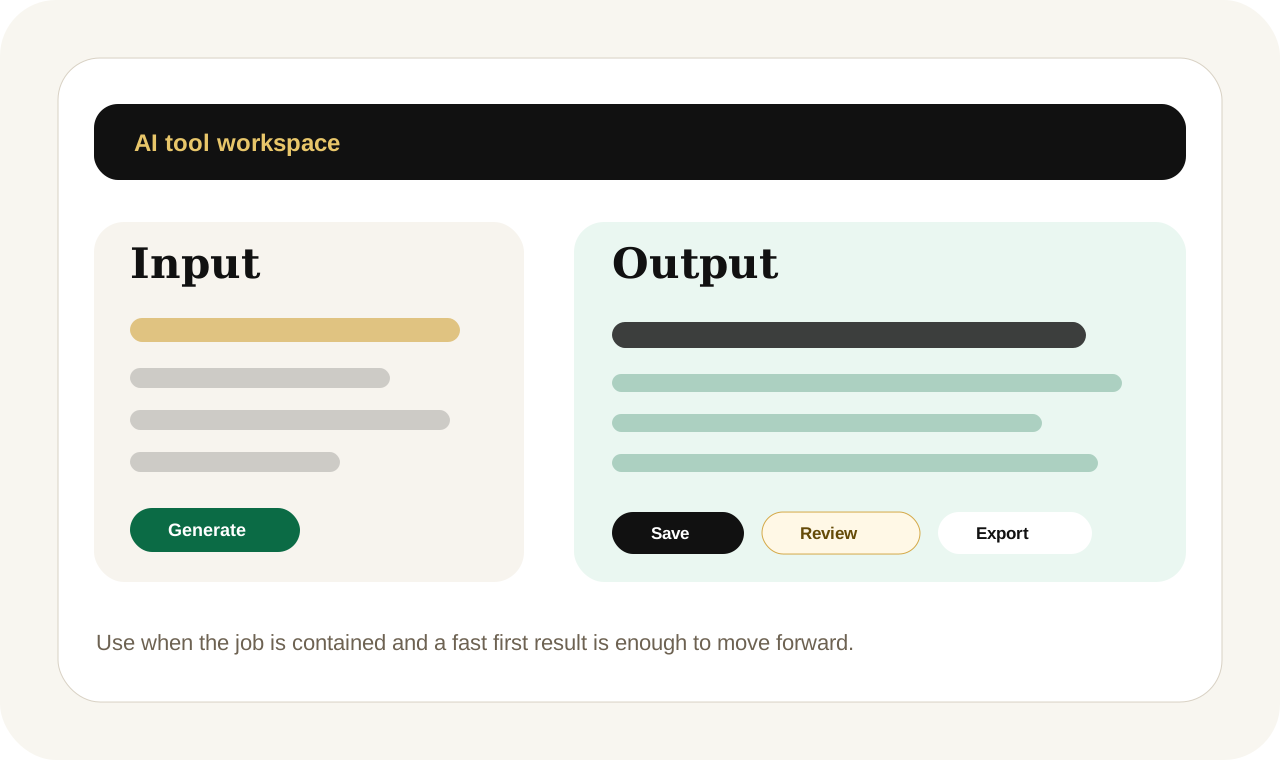
Use this tool when the job is clear and the first output matters more than deep implementation.
This is the right route when the user knows what they need, wants momentum now, and still wants a page that explains the next upgrade path clearly.
Move on when
Step into a broader build when the task repeats, touches revenue, or needs team-level review.
If the work keeps recurring or starts affecting operations, customers, or brand quality, use the workflow, automation, or expert-help path instead of treating the tool like the whole system.
FAQs
Questions customers ask before using this path
What does AI WhatsApp Automation Tool for Business Replies, Leads, and Support actually help with?
AI WhatsApp Automation Tool for Business Replies, Leads, and Support is built for support automations jobs where a fast first output saves time, gives the user a stronger starting point, and reduces repetitive manual work.
When should I use AI WhatsApp Automation Tool for Business Replies, Leads, and Support instead of requesting a custom build?
Use the tool when the task is well defined and you mainly need speed. Move into Project Desk when the workflow repeats, needs integration, or requires higher human review before delivery.
Can I still get human help after using the tool?
Yes. The self-serve route is designed to create momentum first, then hand the work into premium delivery when editing, workflow design, implementation, or expert review becomes necessary.
Related tools
Useful next paths
Customer Support Automation
Route FAQs, tickets, live-chat handoffs, and repetitive support requests through one more reliable support workflow.
Review Response Automation
Automate review monitoring, response drafting, and reputation-management workflows across public feedback channels.